AI Lyrics to Song
Turn your lyrics into a complete song with vocals and music.
 MusicBento
Turn your lyrics into a complete song with vocals and music.
Move from a lyric draft to a complete song: add your words, describe the music around them, and review the generated track.
Write or paste your verses, chorus, and hook, then review the words and structure before starting a generation.
Describe the genre, mood, instruments, and vocal feel, then use optional controls to refine your creative direction.
Generate the song, listen to the result, and keep completed tracks with your other creations in the shared workspace.
Bring original lyrics into a focused songwriting flow. Choose the sound you want, generate a vocal track, then use the shared workspace to listen to and organize each result.

Start with words you have already written or draft new verses and a chorus directly in the lyrics editor. Organize the sections and line breaks so your ideas are easy to review. Edit your wording before generating, then return to the same draft if you want to try another musical direction.
Use the Style field to describe the musical setting for your words, from genre and mood to instruments and vocal character. Try an intimate acoustic ballad, an energetic pop hook, or a darker electronic sound. A specific direction helps you explore how the same lyrics can work in different arrangements.
Give the track a title if you have one, choose a vocal direction, and adjust the advanced controls to shape creativity and style influence. You can also exclude sounds you do not want. Change one setting at a time to explore new results without rewriting the lyrics for every attempt.
When generation finishes, listen to the song and review it in the same MusicBento workspace as your other tracks. Keep completed creations organized by workspace, revisit earlier results from History, and compare different takes on your lyrics. Download eligible audio when your account's access allows it.
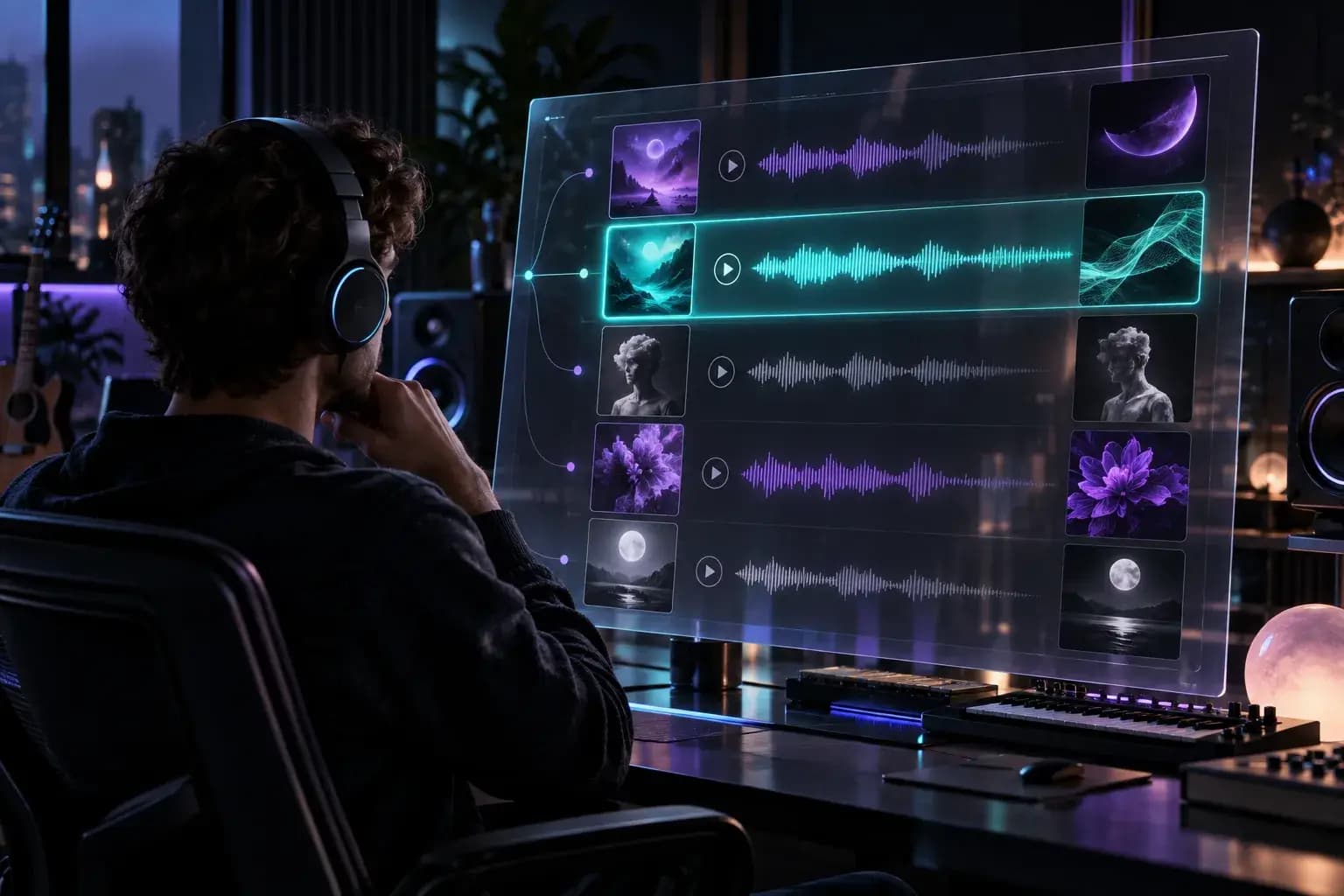
Paste or write lyrics, describe a musical style, and start generation. The tool creates a new song with music and sung vocals from those inputs. Listen in your workspace, compare attempts, and adjust the words or sound for another version.
You need lyrics for a vocal song. Add an existing draft or write verses and a chorus in the editor before generating. If you need help getting started, open the lyric writing tool, then review and edit its draft before creating music.
Yes. The Style field accepts descriptions of genre, mood, instruments, and vocal feel. You might ask for warm acoustic pop, cinematic piano, or energetic electronic music. Start with a clear direction, listen to the result, and refine your description for another arrangement.
Yes. Add a title before generation if you know what to call the song. The field is optional, so you can leave it blank while exploring different styles. When you do not provide one, the music provider may give the result a title.
Yes. Turn on Instrumental to generate music without sung lyrics. That option disables the lyrics editor for the request, while Style remains required to guide the sound. Turn it off again when you want a vocal song from your lyric draft.
This page uses V6 in Advanced mode. The mode and model controls are hidden so you can focus on lyrics and style. To select another model, add source audio, use a Persona, or work with an existing song, open AI Music Generator.
You can write lyrics and configure the form before signing in. An account and enough Credits are required to generate a song, and the form shows the current cost before submission. If your balance is too low, the existing purchase flow shows your options.
Generated tracks appear in the same MusicBento History and workspace used by AI Music Generator. Return later to listen and organize songs alongside your other music. Downloads depend on account access, while source-song actions such as Cover and Extend open the full generator.
Bring your lyric draft to the editor, describe the style you want to hear, and generate a complete song. Listen to the result, then keep exploring in your shared music workspace.