AI Lyric Video Generator
Create synced lyric videos with your music and custom styles.
Sample Lyrics Text
Sample Lyrics Text
Lyrics & Timing
Choose or upload music to sync and edit detected lyrics.
 MusicBento
Choose a song, sync its lyrics, and shape the visuals before rendering. The AI lyric video generator keeps timing edits, live preview, and MP4 export in one workflow.
Upload an audio file or select a song from My Music. Choose the part of the track you want to use before building your lyric video.
Transcribe the song to get timed lyrics, then correct the words and adjust each line while listening to the preview.
Choose a lyric style, background, colors, and video layout. Preview the result, then render and download the finished MP4.
Turn an existing track into a lyric video with timed words and a visual style you control. MusicBento brings song selection, lyric corrections, backgrounds, live preview, and export together so you can prepare a video for the places you share music.
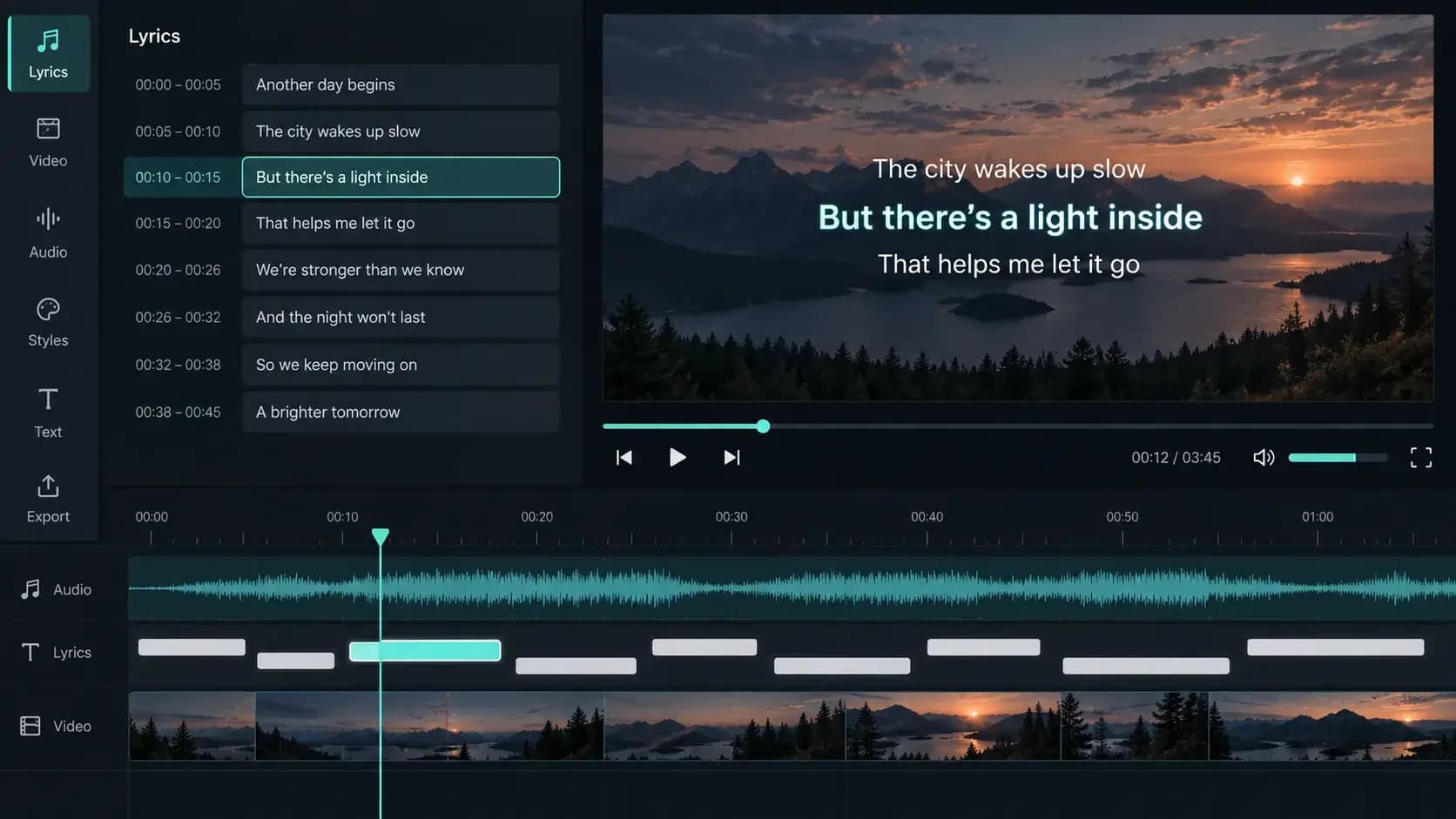
Start with an uploaded track or a song from My Music, then transcribe it into timed lyric lines. Listen to the song as you review the words, correct recognition mistakes, and adjust line timing before you commit to a render. The result follows your music instead of relying on manually placed captions.
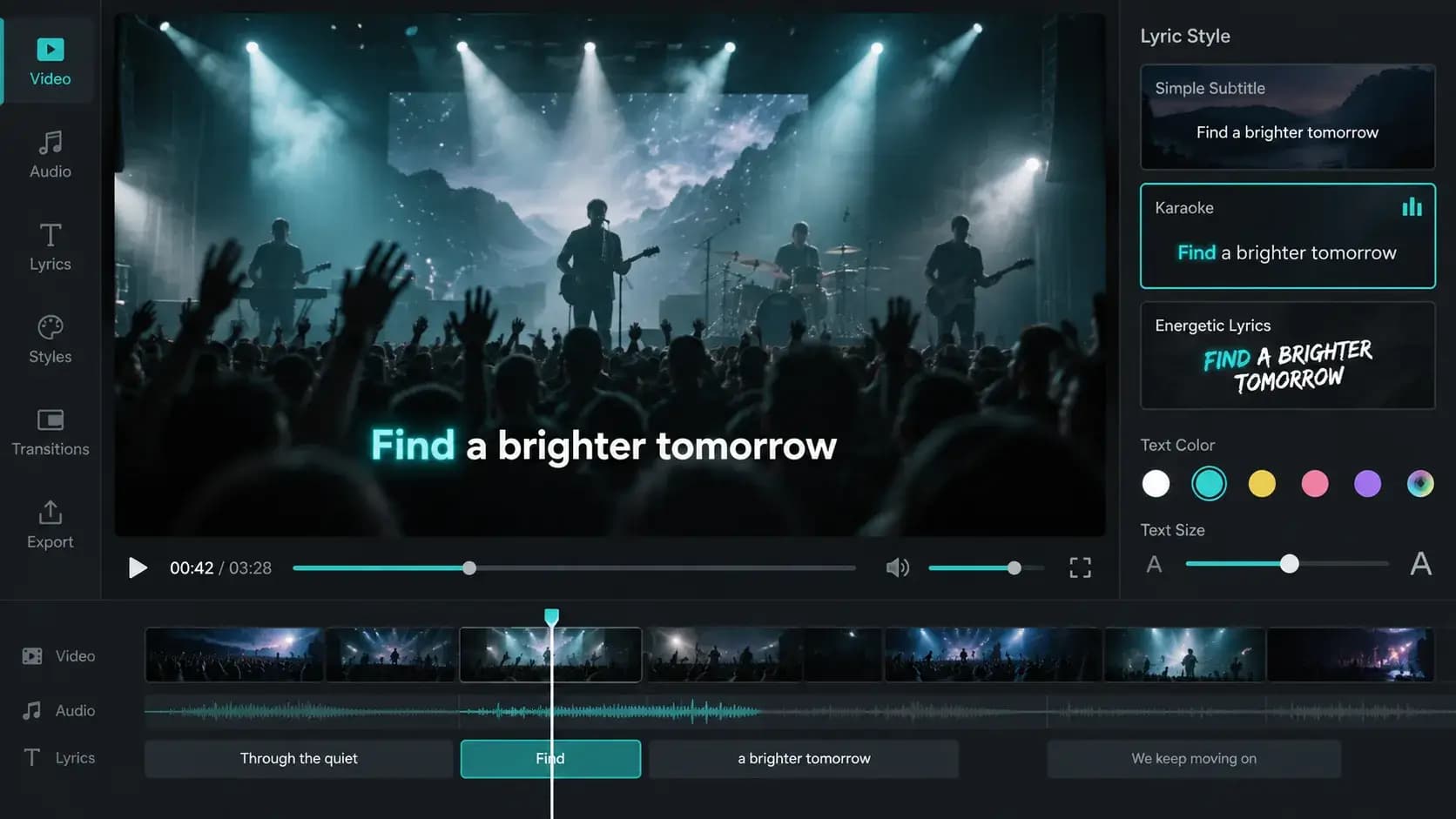
Choose a readable subtitle look or a more expressive Karaoke or TikTok style with progressive word highlights. Adjust text size, position, colors, outline, and shadow to keep the lyrics legible against your chosen background. Preview the styling with your own song before rendering the video.
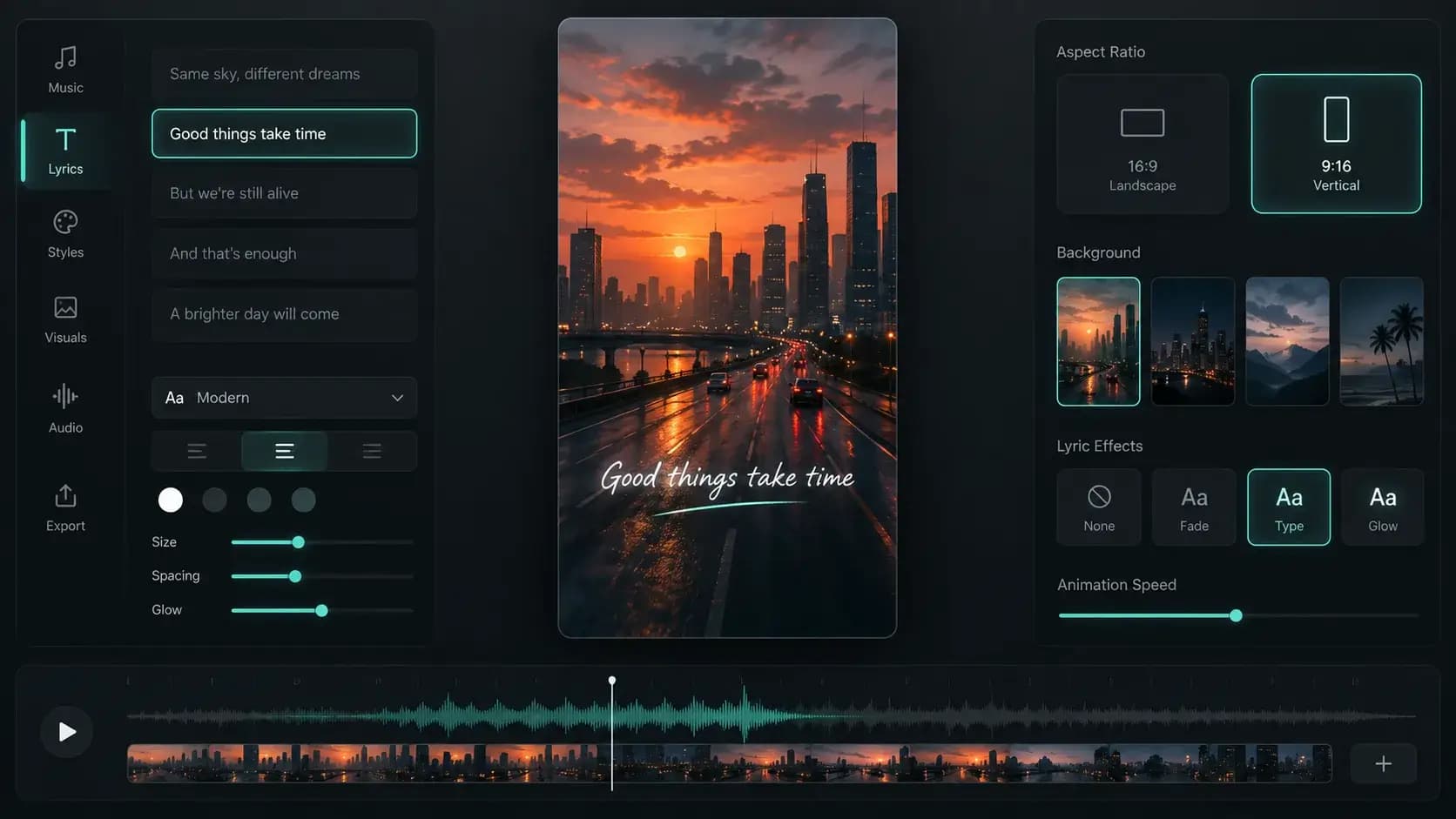
Switch between landscape and vertical video layouts to match the place you plan to share your song. Check how the lyrics and background fit each frame in the preview, then make another version when you need a different format for a music channel, a release announcement, or a short social post.
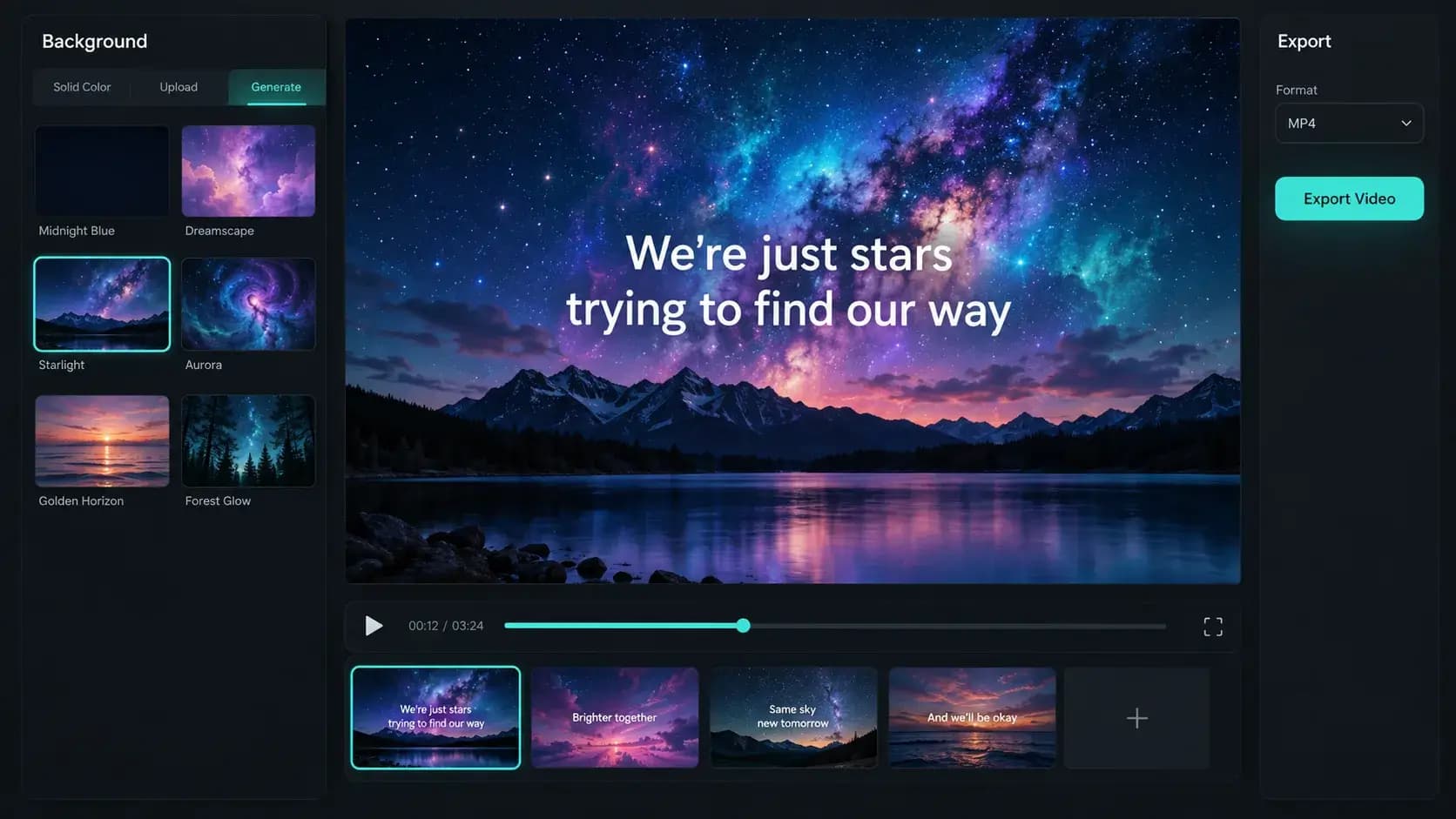
Use a solid color, upload an image, or generate an image for the backdrop, then preview it with the synced lyrics and song. Fine-tune the look before starting the final render. Completed videos stay in History, where you can reopen a result, review its settings, and download the MP4.
Upload your audio or choose a track from My Music, then transcribe the lyrics to create a timed draft. Review the detected words, edit line timing if needed, choose a style and background, and use the live preview to check the result. When it looks right, render the video and download its MP4 from History.
Yes. You can upload a supported audio file or select an eligible song already saved in My Music. If you only need part of a longer track, choose an audio range before syncing and rendering. The video uses your selected song as its soundtrack, so you can work with a release, demo, or other track you have access to.
The Transcribe action creates timed lyrics from the selected song. Depending on the source, MusicBento can use existing song timing or transcribe the audio to build a draft. Automatic transcription may mishear a word or place a line imperfectly, so review the text and timing in the editor before rendering your final video.
Yes. You can edit lyric lines, add or remove a line, and adjust when each line starts and ends. Play the song or an individual line while checking the preview to see whether the words match the vocal. Make those corrections before rendering, and use Edit & Retry on a History item if you want to revise an earlier setup.
The editor includes clean subtitle styles alongside Karaoke and TikTok-inspired word highlighting. You can also adjust text size, placement, text and highlight colors, outline, and shadow. Choose a look that stays readable over your background, then watch the live preview to judge how it feels with the actual song and lyrics.
Yes. Choose a solid color, upload an image, or use the available image generation option to make a background. You can inspect the chosen image in the preview and adjust how it fits the frame before rendering. Image generation and video rendering are separate actions, and the interface shows any applicable credit cost before you start.
Yes. The video settings offer both 16:9 landscape and 9:16 vertical layouts. Vertical framing can work for short social posts, while landscape framing suits many standard video players. Switch formats in the editor and check the preview, especially the lyric position and background crop, before you render each version.
The render appears in History so you can follow its progress and return after leaving the page. Once it finishes, open the result to play the video, review its settings, rename it, or download the MP4. If the look or timing needs another pass, use Edit & Retry to restore that render's setup and make changes before creating a new version.
Bring your song into the lyric video generator, sync and refine the words, then choose a look that fits the music. Preview the result and render an MP4 when every line feels right.